How to Register and View RFPs
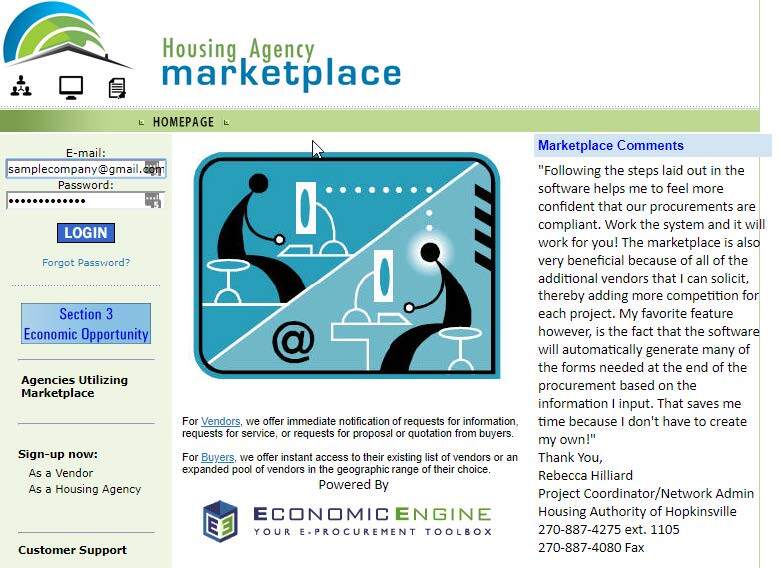
- Visit ha.economicengine.com (no "www") to obtain any solicitation documents.
- Click on the "Login" button in the upper left side.
- Follow the listed directions.
- If you have any problems in accessing or registering on the Housing Agency Marketplace, please call customer support at 866.526.9266.
Current Solicitations
- None at this time.
Forms
Section 3 Registry
The Section 3 Business Registry is a listing of firms that have self-certified that they meet one of the regulatory definitions of a Section 3 business and are included in a searchable online database that can be used by agencies that receive HUD funds, developers, contractors, and others to facilitate the award of certain HUD-funded contracts. The database can also be used by Section 3 residents to identify businesses that may have HUD-funded employment opportunities.
This registry is a helpful tool to assist recipients of HUD funding (e.g., Public Housing Agencies, local units of government, property owners, etc), developers, and others locating Section 3 businesses within their community. It also enables HUD grantees to meet their Section 3 obligations by reducing some of the burden associated with locating eligible businesses.
It is important to note that Section 3 businesses are not entitled to receive contracts simply by being listed in HUD's Section 3 Business Registry database. Eligible businesses may need to demonstrate that they are responsible and have the ability to perform successfully under the terms and conditions of proposed contracts. Section 3 requirements at 24 CFR 135, then provides a preference for contracts and subcontracts to these firms-but, not a guarantee.
While the Department maintains the Business Registry database, it has not verified the information submitted by the businesses and does not endorse the services they provide. Accordingly, it is recommended that users perform due diligence before awarding contracts to firms that have self-certified on this registry by ensuring that they meet the definition of a Section 3 business concern as defined by the Department's regulations at 24 CFR 135.5.
The general public can notify the Department through the Business Registry website if they believe a firm has potentially misrepresented itself as a Section 3 business. In such situations, HUD will request documentation and additional information from the business to verify that they qualify for inclusion in the database. Businesses found to have misrepresented themselves will be removed from the database and penalized (see registry webpage for more information).
Vendor Registration Instructions
-
Marketplace Registration
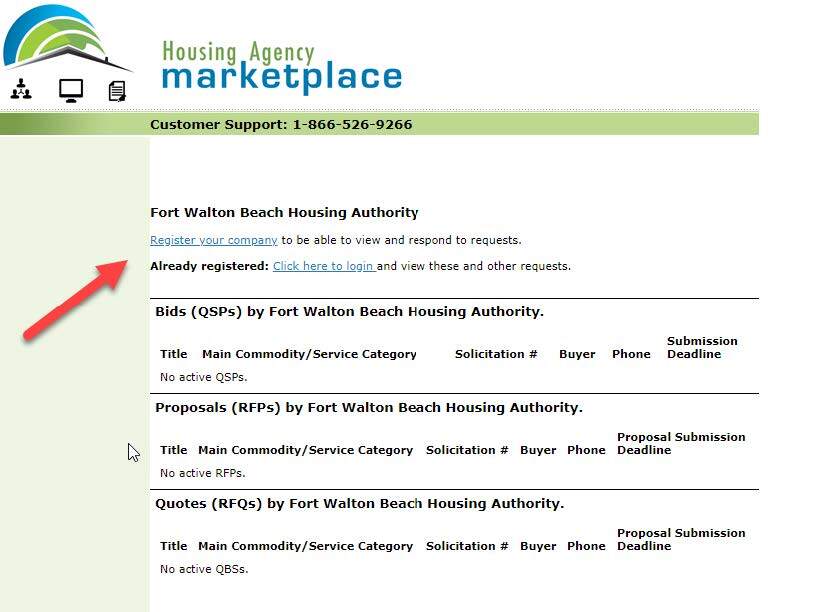
Click "Register your Company" You will be redirected to a form that will allow you to Create an Account.
-
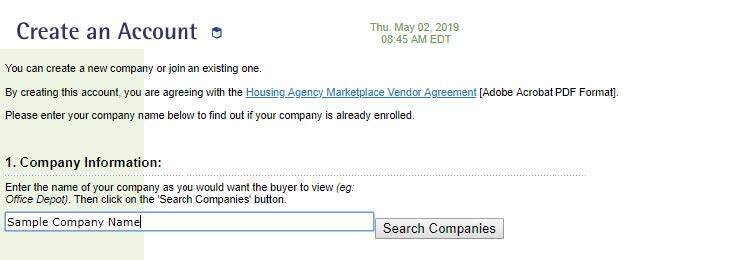
Creating an Account
Enter your company name and click on "Search Companies." If no company is found, click on "Register your company." If your company was found, follow instructions to register as a salesperson. Submit the request.
-
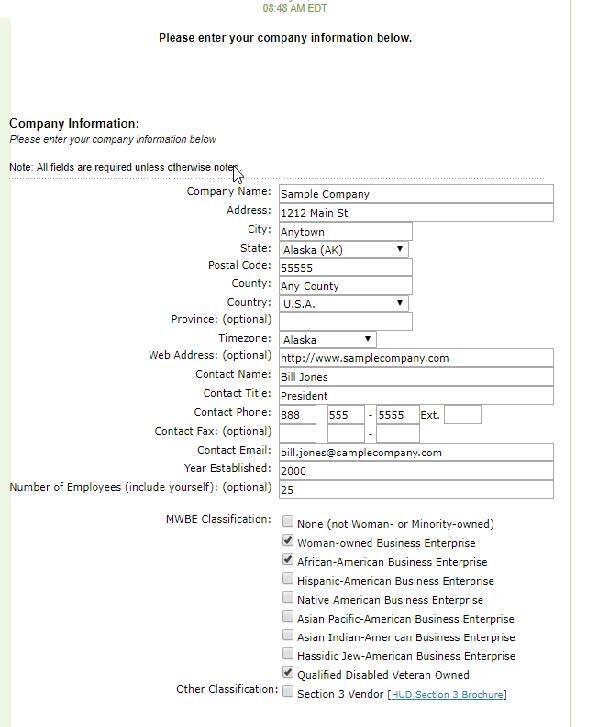
Company Information
Complete the Company Information Form. You must include all information unless it states "optional." Be sure to check either "None" on the MWBE Classification, or all boxes that apply to your company.
-
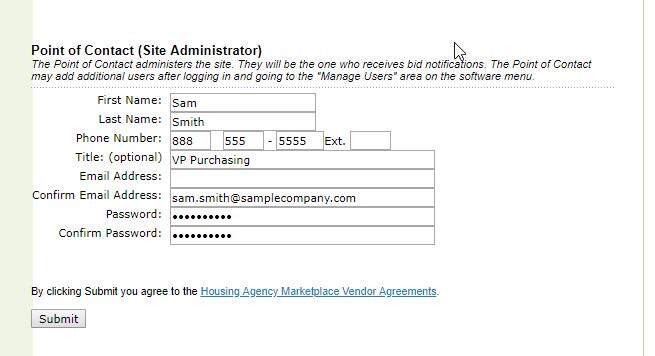
Point of Contact
Complete Point of Contact (Site Administrator) Information. Click Submit.
-
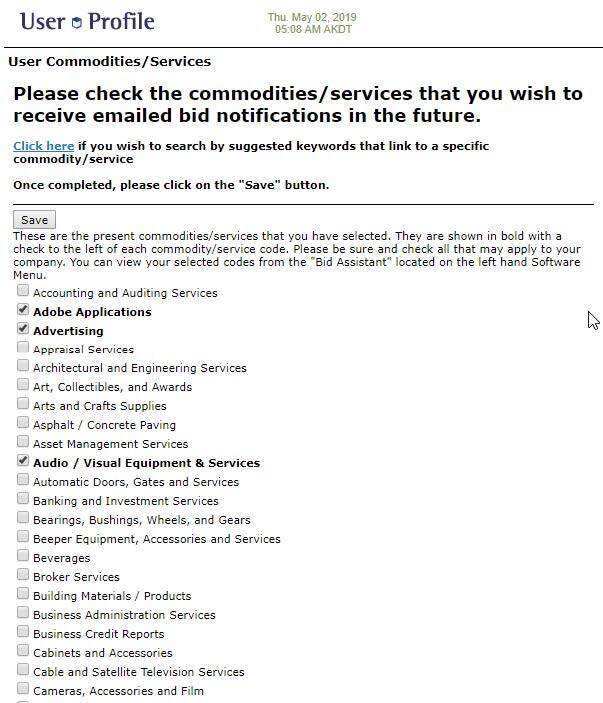
Company Services / Commodities List
Check each box that is appropriate to your business. You may use the "Click Here" link to search for codes. Click Save & Continue.
-
Login to the Marketplace
Enter your email address and password to enter our marketplace. You will be prompted to check a site usage agreement before entering our Marketplace. Once you check this box and hit submit, you will then be allowed to enter.